 simpler
Settings and performance
Simpler is designed to stay fast even with huge scenes and on graphics cards older than the latest ones. Here you find the settings, the panel that shows how hard your computer is working, the tools that lighten a heavy scene, and the pages through which Simpler keeps in touch with you.
Settings#
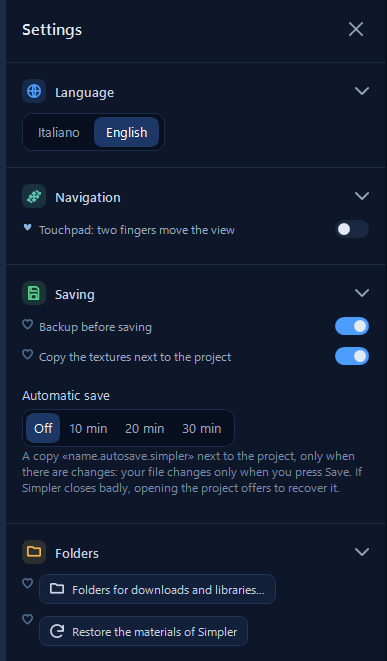
You open the settings from the gear in the toolbar or from the file menu. Most of them you set once and forget. Language switches between Italian and English. Navigation has the switch for laptops, Touchpad: two fingers move the view. Saving holds the protections described in Projects and files: turn them on.
Folders is worth a look. Folders for downloads and libraries… shows where your models, plants, materials, decals and examples live: everything Simpler writes for you goes into the folder you chose at installation, and you can move it here, for example to a larger disk. If something ever goes wrong with Simpler's materials, Restore the materials of Simpler rebuilds them.
The other sections hold the API keys for the AI functions, the version with What's new in this version, About and Licenses and credits, and the Updates. With Check for updates automatically on, Simpler asks the website once a day whether there is a new version, sending only its version number and the language. When there is one, a strip tells you and opens the download page: download the new setup and run it, and your projects and library are kept.
What's new#
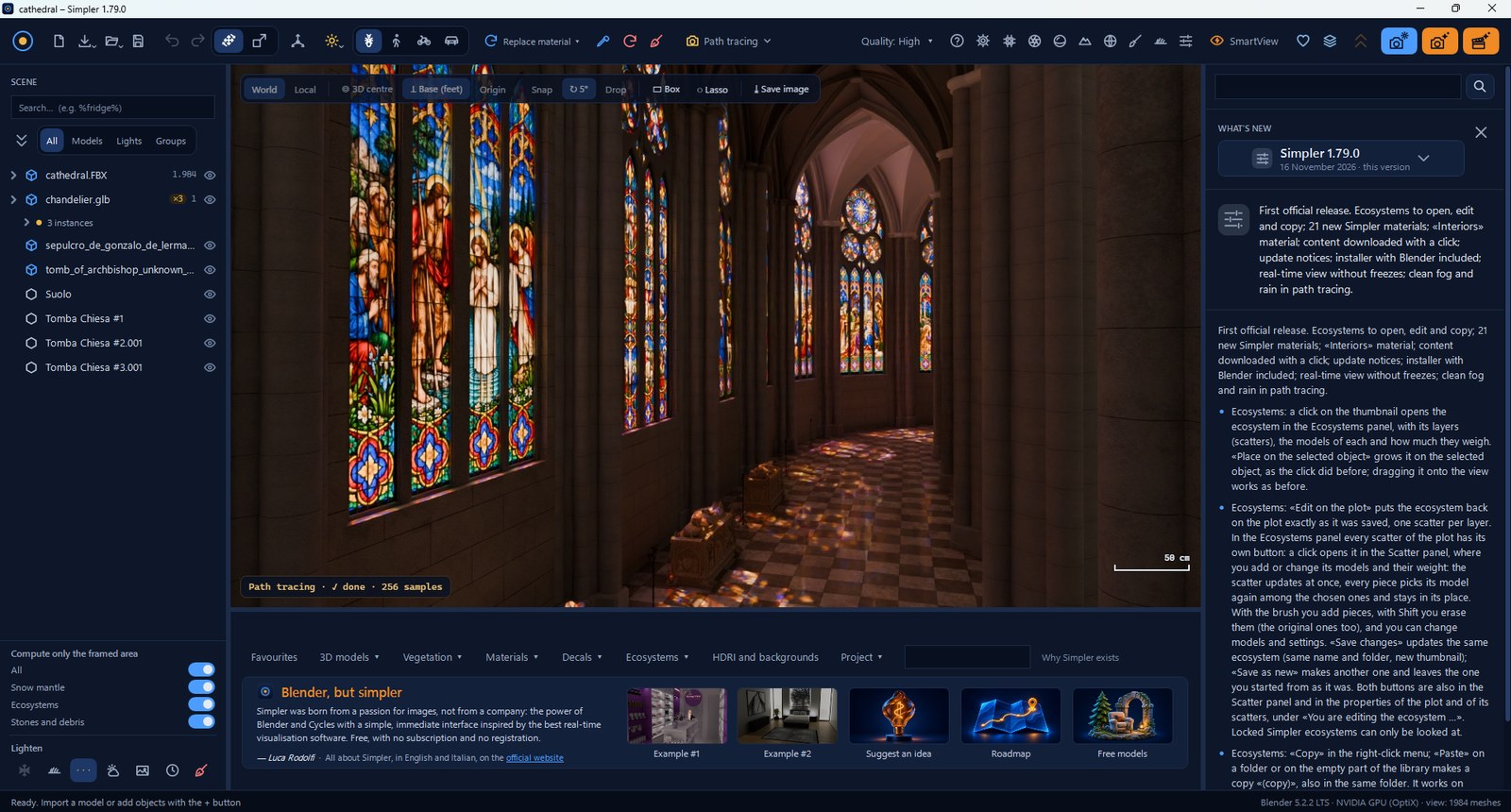
The question-mark button opens What's new: for every version a short summary and the detailed list of changes. After an update, it is the quickest way to discover what you can now do.
The Resources panel#
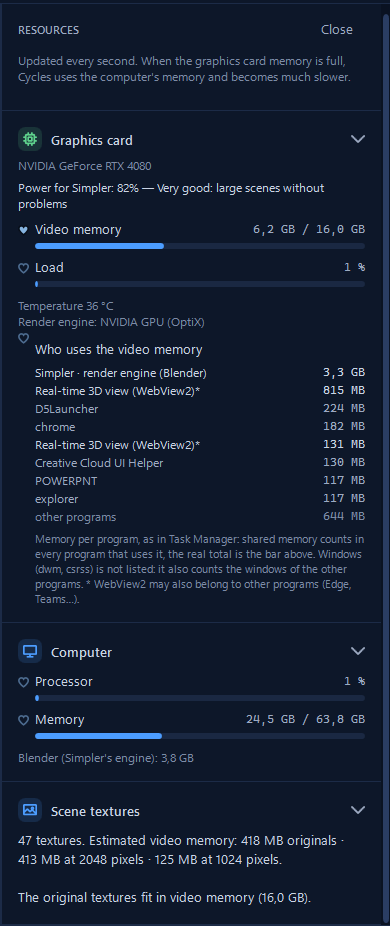
The chip button opens a panel that updates every second and answers the question «why is it slow?». The Graphics card section shows your card, how suitable it is for Simpler (for example «82% — Very good: large scenes without problems»), the Video memory in use and the load. Video memory is the one to watch: when it is full, Cycles has to use the computer's memory and becomes much slower.
Who uses the video memory shows where it goes: Simpler's engine, the real-time view, and the other programs you have open. A browser with many tabs or another 3D program can take a lot; closing them is often the quickest fix. Scene textures tells you how much video memory the textures of your scene need at full size, at 2048 and at 1024 pixels, and whether they fit.
Lighten#
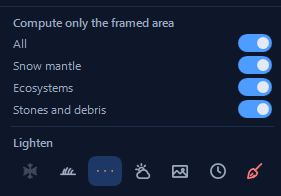
When the real-time view becomes slow, the buttons of Lighten give you back fluidity without changing your final image. Each one has a tooltip; from left to right they hide the snow, hide the distributions (trees, grass, scatters and ecosystems are not drawn in real time but stay in path tracing and in the images), hide the falling flakes and drops, switch off the shadows of the view, halve the resolution of the view (a quarter of the pixels, much smoother, a little softer), pause the automatic recalculations of rain shelter, snow mantle and flakes until you resume them, and free the memory the scene no longer uses.
Diagnostics#
In the file menu, Diagnostics… opens «Diagnostics and improving Simpler». It is your choice whether to help: Automatic sends a short report when something serious happens (at most once a day) and, once per new version, a report with only the computer details; Only when I decide sends only when you press Send now; Do not send sends nothing.
The reports contain no images, project contents or names, no personal data and no IP address: only versions, graphics card, speed of the view and the kind of problems. They help find and fix the problems that happen on computers different from the developer's, which is exactly where most surprises hide.
Ideas, roadmap and free models#
The welcome box has three buttons that open a page in the space of the view; × Back to the scene closes it.
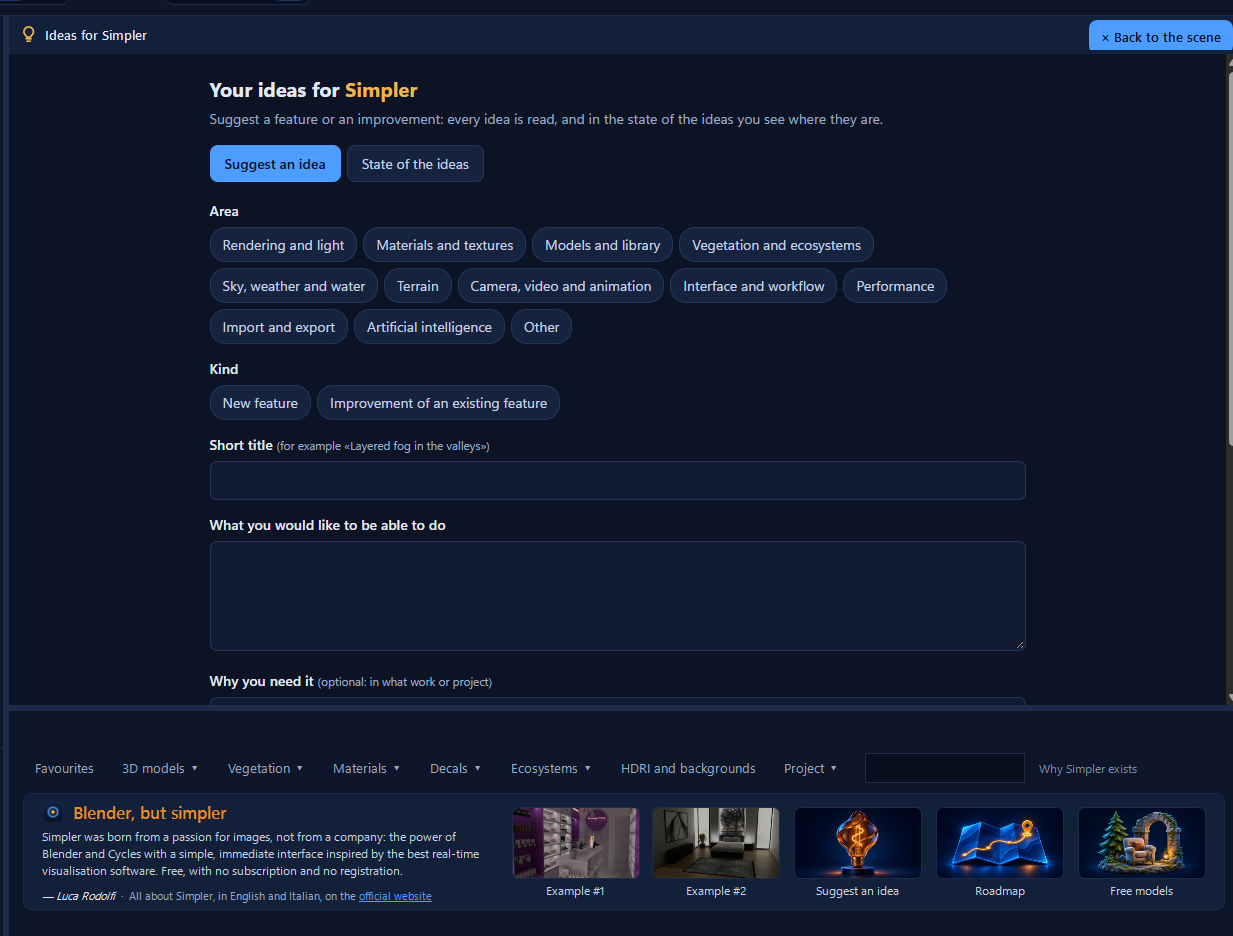
Suggest an idea is the way to tell what you would like Simpler to do. Choose the area (rendering, materials, vegetation, terrain, interface, performance…) and the kind of idea, a new feature or an improvement, give it a short title and describe what you would like to be able to do and, if you like, in what work you need it. Every idea is read, and in State of the ideas you can see where it is.
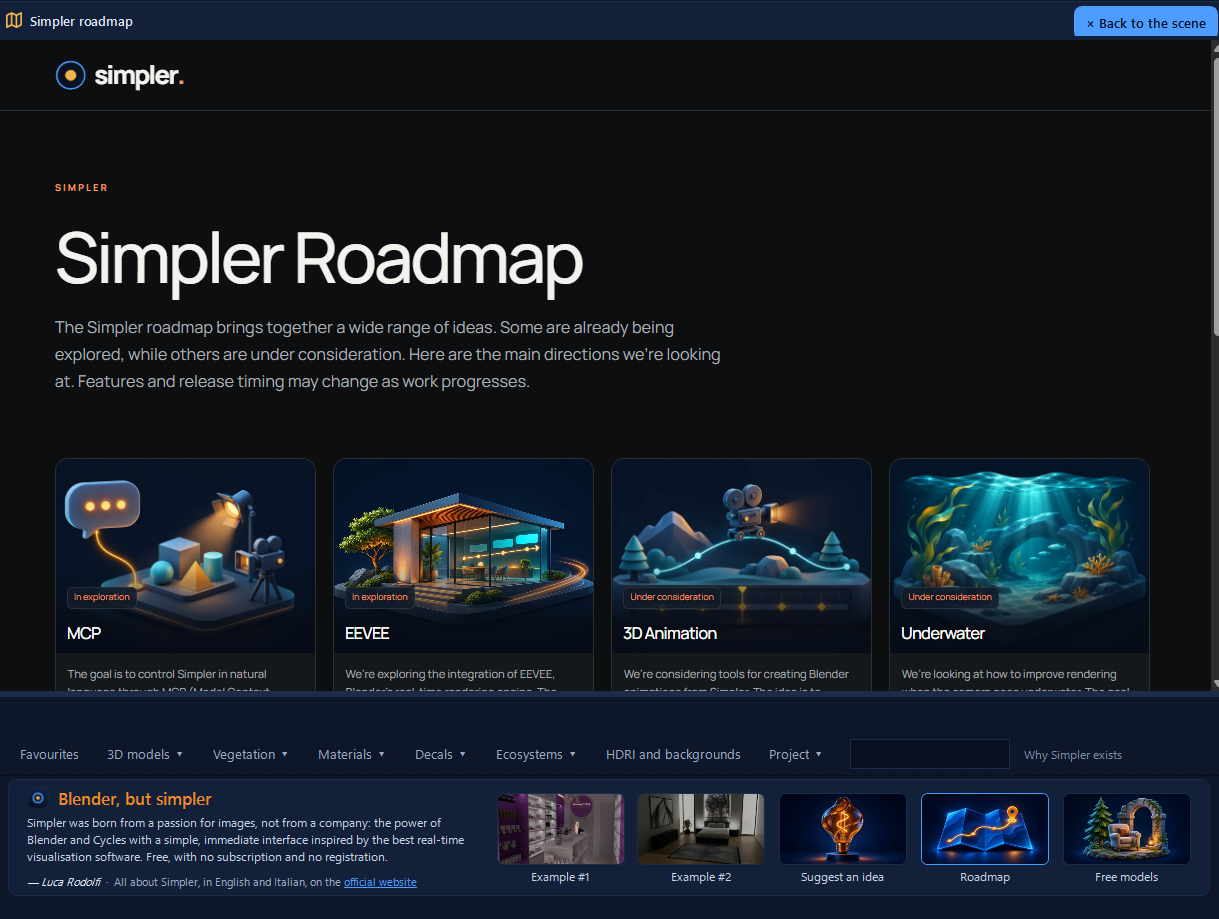
Roadmap shows the directions in which Simpler may grow, some already being explored and others under consideration. It is shown inside Simpler as a simple page to read.
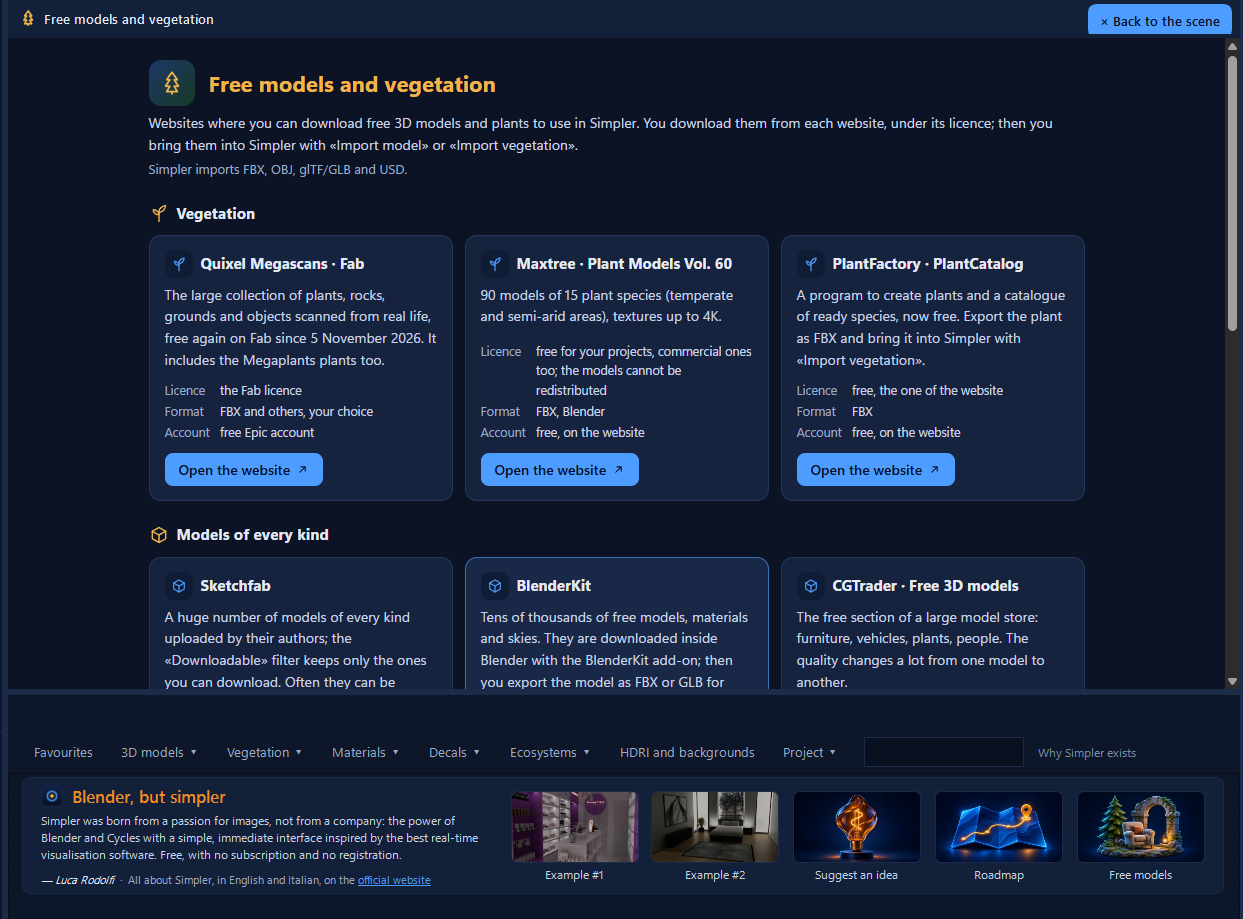
Free models collects websites where you can download free 3D models and plants to use in Simpler, divided into vegetation, models of every kind and museums. For each one it tells you the licence, the formats and whether you need an account; you download from the website itself, then bring the files into Simpler with Import models or Import vegetation.
Always read the licence on the page of the model before using it in a work: some ask you to credit the author, others do not allow commercial use.
Keeping big scenes fluid#
A few habits keep even huge scenes pleasant to work with. Compose in real time and judge in path tracing, going back to real time when you move many objects. Turn on SmartView while you place lots of objects in a heavy scene. Leave Compute only the framed area on for snow, ecosystems and stones. Use instances for repeated objects: twenty identical chairs weigh almost as much as one. Lighten heavy imported models with right-click ▸ Optimize polygons…. If the graphics memory is full, use smaller textures: Texture in the real-time view, Preview textures in path tracing, Auto in the final render. And before a long render, always make a Test 960×540.