 simpler
Landscape
A building is never alone: behind it there are hills, mountains, the sea. The Landscape panel builds everything that surrounds your scene up to the horizon, and keeps your model on a flat area in the middle. The same landscape appears in the real-time view and in path tracing.
How a landscape is built#
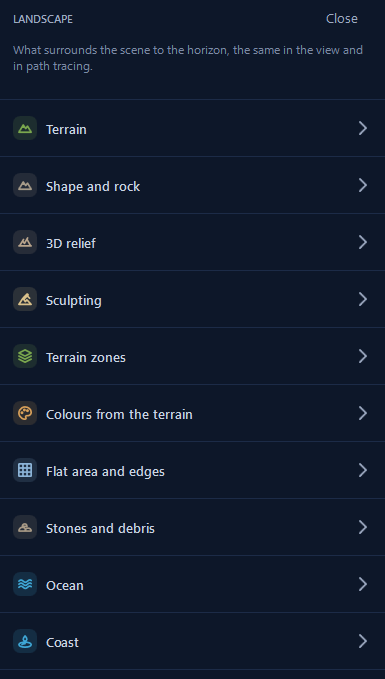
Open the panel with the mountain button in the toolbar. Its sections follow the order in which nature itself works, and it is the best order to follow: first the shape of the land, then the rock that comes out on the steep slopes, then the colours and the zones of grass, gravel and snow, then what lies on the ground, and finally the sea and the coast. You do not have to use them all: a gentle hill with some lawn is already a landscape.
Terrain#
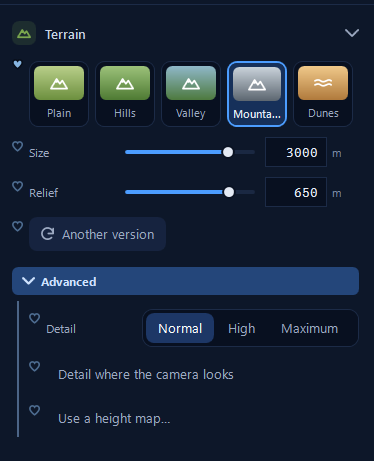
Start from a kind of terrain: Plain, Hills, Valley, Mountains or Dunes. Each one is a realistic landform, not a random bumpy surface: the mountains, for example, have ridges, valleys carved by water and rock walls, 3 km wide with 650 m of relief. Size and Relief adapt it to your scene, and Another version generates a new landscape of the same kind: click until the hills fall nicely behind your building.
Under Advanced, Detail increases the resolution of the terrain, and Detail where the camera looks puts the detail where you see it and saves it elsewhere. If you have a height map of a real place, Use a height map… builds the terrain from it.
Shape and rock#
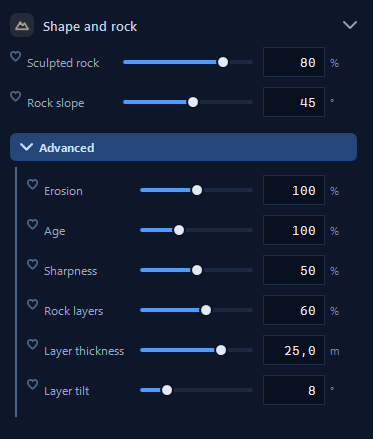
On steep slopes the earth gives way to rock. Sculpted rock decides how much the steep parts become rock walls, and Rock slope from which steepness the rock appears. Under Advanced the slopes get a geological history: Erosion and Age soften and wear them, Sharpness makes them jagged, and Rock layers, Layer thickness and Layer tilt create the stratified bands of real cliffs.
3D relief#
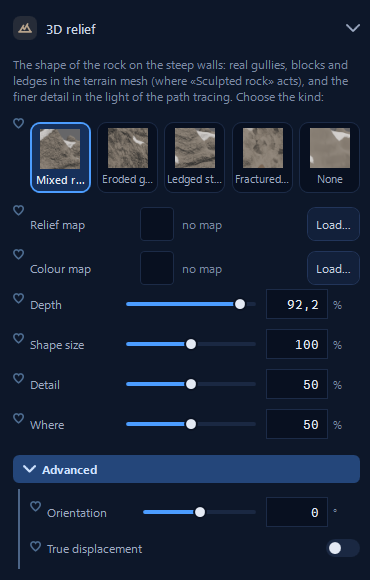
3D relief gives the rock walls their real shape: gullies, blocks and ledges built into the terrain, plus the finer detail that the path tracing adds in the light. Choose the kind of rock (Mixed rock, gullies, ledges, fractured, or none), then Depth, Shape size, Detail and Where. If you have your own textures, you can load a Relief map and a Colour map.
Sculpting#
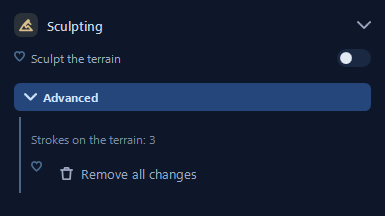
Sometimes the landscape is almost right but a hill is in the wrong place. Turn on Sculpt the terrain, hold the left button on the view and drag: the terrain rises under the brush and changes at once in the view. When you close the tool (by switching it off, changing panel, going to path tracing, rendering or saving), Blender rebuilds the terrain once and recalculates the zones, so where you made it steep, rock appears. Under Advanced you see how many strokes you made, and Remove all changes brings back the original landscape.
Terrain zones#
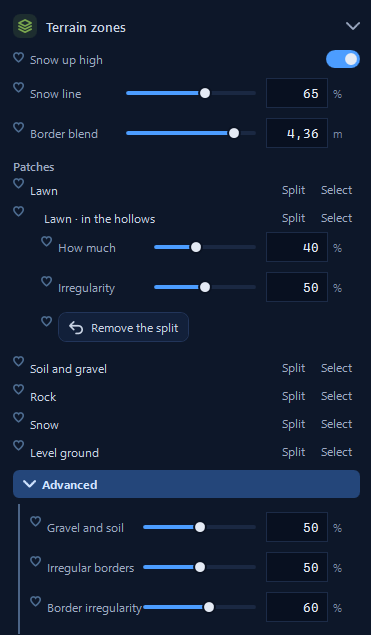
The terrain is dressed in zones, each with its own material: Lawn, Soil and gravel, Rock, Snow and Level ground. Simpler places them by itself, rock on the steep parts and lawn on the gentle ones; with Snow up high you add snow on the peaks and choose the Snow line.
For each zone, Select opens its material so you can change it, and Split creates a variant, for example a greener lawn in the hollows where water collects, with How much and Irregularity. Under Advanced the borders between zones can be made irregular, as they are in nature.
Colours from the terrain#
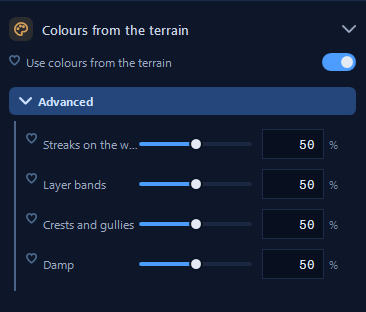
Use colours from the terrain adds the colour variations that make rock believable: darker streaks where water runs down the walls, bands that follow the layers, crests and gullies, damp areas. Each effect has its own slider under Advanced.
Level ground around your model#
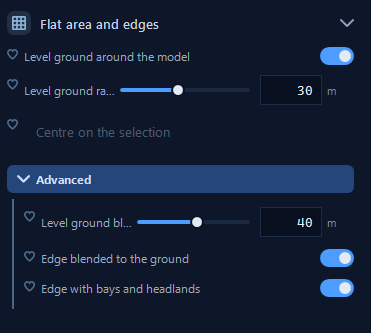
Your building or product needs flat ground to stand on. Level ground around the model flattens the terrain in a circle of the Level ground radius you choose, centred on the scene or, with Centre on the selection, on the selected object. Under Advanced, Level ground blend decides how gently the flat area joins the hills, and the switches for the edge make it blend into the ground or give it bays and headlands when it meets the sea.
Stones and debris#
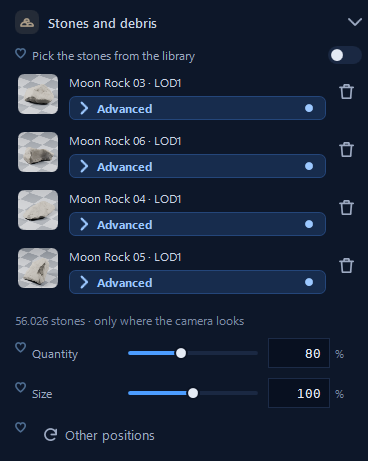
Real slopes are full of fallen stones, and they make a big difference to realism. Turn on Pick the stones from the library and click the stone models you want: more than one gives more variety. Simpler scatters them only where the camera looks, and tells you how many, for example «56.026 stones · only where the camera looks». Quantity, Size and Other positions are all you need to start.
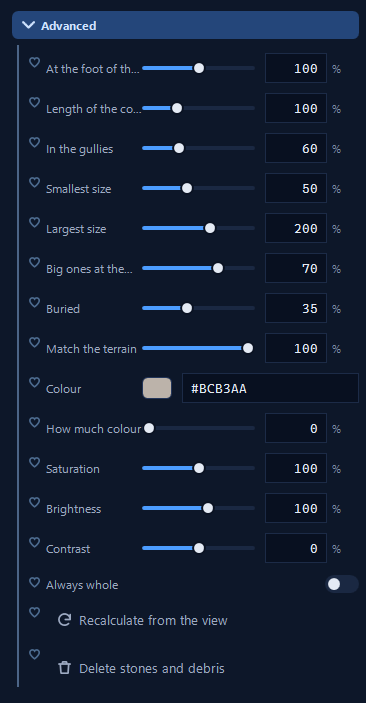
Under Advanced you decide where the stones gather, as gravity would: at the foot of the walls, in the gullies, with big ones at the bottom. You set their smallest and largest size, how much they are Buried, and Match the terrain gives them the colour of the ground around them. After moving the camera, Recalculate from the view puts stones where you now look, and Delete stones and debris removes them all.
Ocean#
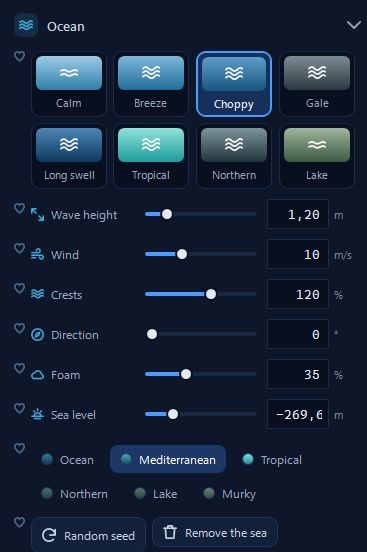
The Ocean adds a sea that reaches the horizon, with real waves. Choose its character first: Calm, Breeze, Choppy, Gale, Long swell, Tropical, Northern or Lake. Then refine the Wave height, the Wind, the Crests, the Direction of the waves, the Foam and the Sea level. The colours, Ocean, Mediterranean, Tropical, Northern, Lake and Murky, change the water from deep blue to turquoise to green. Random seed gives you a different sea, and Remove the sea takes it away.
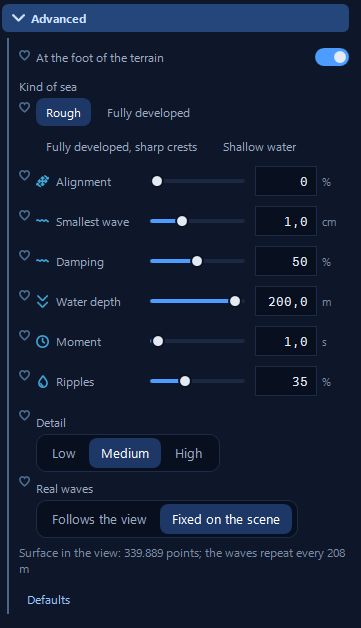
Under Advanced you can work like an oceanographer: the Kind of sea, the Smallest wave, the Water depth, the Moment of the waves (like choosing the exact instant of a photo) and Real waves that follow the view or stay fixed on the scene.
Coast#
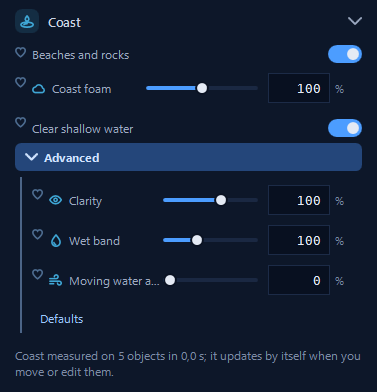
Where land meets sea, the Coast section adds Beaches and rocks, Coast foam where the waves break, and Clear shallow water, the transparent turquoise of a bay. Under Advanced, Wet band darkens the sand just above the water and Moving water at the edge animates the shore. The coast updates by itself when you move or edit the objects near it.
For a building by the sea: Mountains with low relief, Level ground around the model for the garden, ocean Breeze with the Mediterranean colour and Beaches and rocks on. At Golden hour the light grazes the rock layers and the sea turns turquoise near the shore.