simpler
Projects and files
A Simpler project is a single .simpler file that holds your whole scene: objects, the materials you changed, sky, saved views and render settings. This chapter shows you how to keep it safe and how to fill your library with your own models.
The file menu#
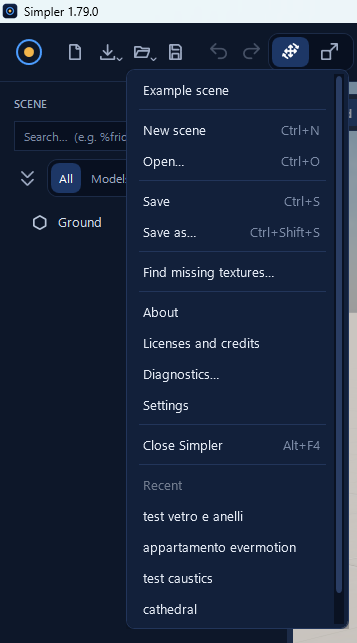
The folder button in the toolbar opens the file menu. Besides the classic commands, New scene (Ctrl+N), Open… (Ctrl+O), Save (Ctrl+S) and Save as… (Ctrl+Shift+S), the menu lists your recent projects, one click away.
Two commands deserve a word. Find missing textures… rescues a project after you moved or renamed a folder: it looks for the pictures the materials can no longer find and links them again, instead of leaving you with pink surfaces. Licenses and credits lists every author, licence and tool Simpler uses, kept up to date version after version: Simpler exists thanks to a lot of generous people, and this is where they are named.
Saving without worries#
Nothing is more frustrating than losing an afternoon of work, so Simpler gives you three protections in Settings ▸ Saving, and it is worth turning them on.
Automatic save writes a safety copy every 10, 20 or 30 minutes, only when something has changed. The copy is called name.autosave.simpler and sits next to your project: your own file changes only when you press Save, so you never find it modified behind your back. If Simpler closes badly, the next time you open the project it offers to recover the copy. Backup before saving keeps the previous version of the file each time you save, so you can always go one step back. Copy the textures next to the project puts a copy of every picture used by the materials beside the project: then you can move the project to another disk or send it to a friend and nothing goes missing.
Simpler never marks a scene as «modified» and never nags you to save: saving is your choice, when you want it.
Importing a model into the scene#
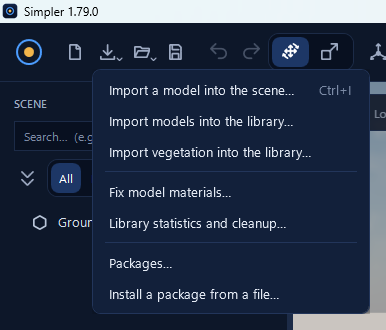
Simpler opens FBX, OBJ, glTF/GLB and USD, the formats that almost every 3D program and model website can export. To bring a single model into the scene you are working on, use Import a model into the scene… in the Import menu, or Ctrl+I. The model appears in the centre of the view and in the scene tree you find it as a branch you can open down to its pieces.
This is perfect for the main subject of an image: the building you are presenting, a car, a piece of furniture you designed. For the objects you will reuse in many projects, it is better to put them into the library, as explained in Filling the library with your models.
Models downloaded from the internet are sometimes very heavy. Right-click the model ▸ Optimize polygons…: Simpler shows you how many triangles you save before applying, and the difference is often invisible in the image.
Imported models and their materials#
Every imported model keeps its own materials. If you change the glass of a window on the building, only that building changes, even if a lamp in the scene has a material called «Glass» too. In the Material panel an orange line, «The changes also change: …» followed by the model's name, always tells you which model you are touching.
Filling the library with your models#
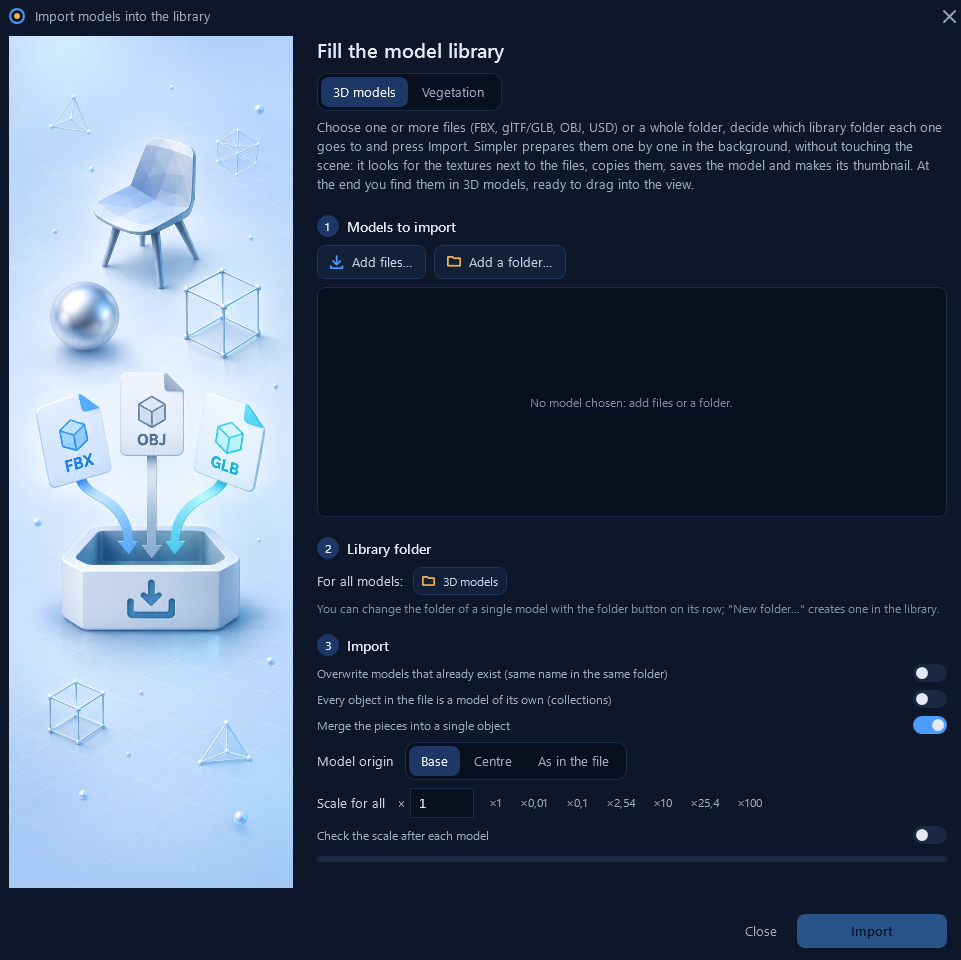
When you have a collection of models, a set of furniture bought online or the trees you exported from another program, Import models into the library… brings them all in at once and makes them available in every project. The window works in three steps.
First you choose the models to import: Add files… for single files, Add a folder… for a whole folder. Then you choose the library folder where they go; one folder for all of them, or a different one for a single model with the folder button on its row (New folder… creates one on the spot). Finally you decide how to import them, and click Import.
Simpler then works in the background, one model at a time, without touching your scene. For each file it looks for the textures next to it and copies them, saves the model and makes its thumbnail. When it has finished you find them in 3D models, ready to be dragged into the view.
The import options are worth understanding, because they save you a lot of fixing later:
- Merge the pieces into a single object (on by default) turns a model made of hundreds of small parts into one object that is light and easy to move. Turn it off when you want to keep the parts separate, for example to change the fabric of a single cushion.
- Every object in the file is a model of its own (collections) is for files that contain a whole catalogue: ten chairs in one FBX become ten separate models in the library.
- Model origin decides where the model has its handle. Base puts it at the feet, so the model lands on the floor when you drag it in; Centre puts it in the middle; As in the file keeps what its author chose.
- Scale for all fixes models made in the wrong unit. A model that arrives a hundred times too big was made in centimetres: choose ×0,01. The other quick values cover millimetres, inches (×2,54 and ×25,4) and so on. If you are not sure, turn on Check the scale after each model and Simpler will show you each model to confirm its size.
- Overwrite models that already exist replaces models with the same name in the same folder; leave it off and nothing you already have will be touched.
Vegetation#
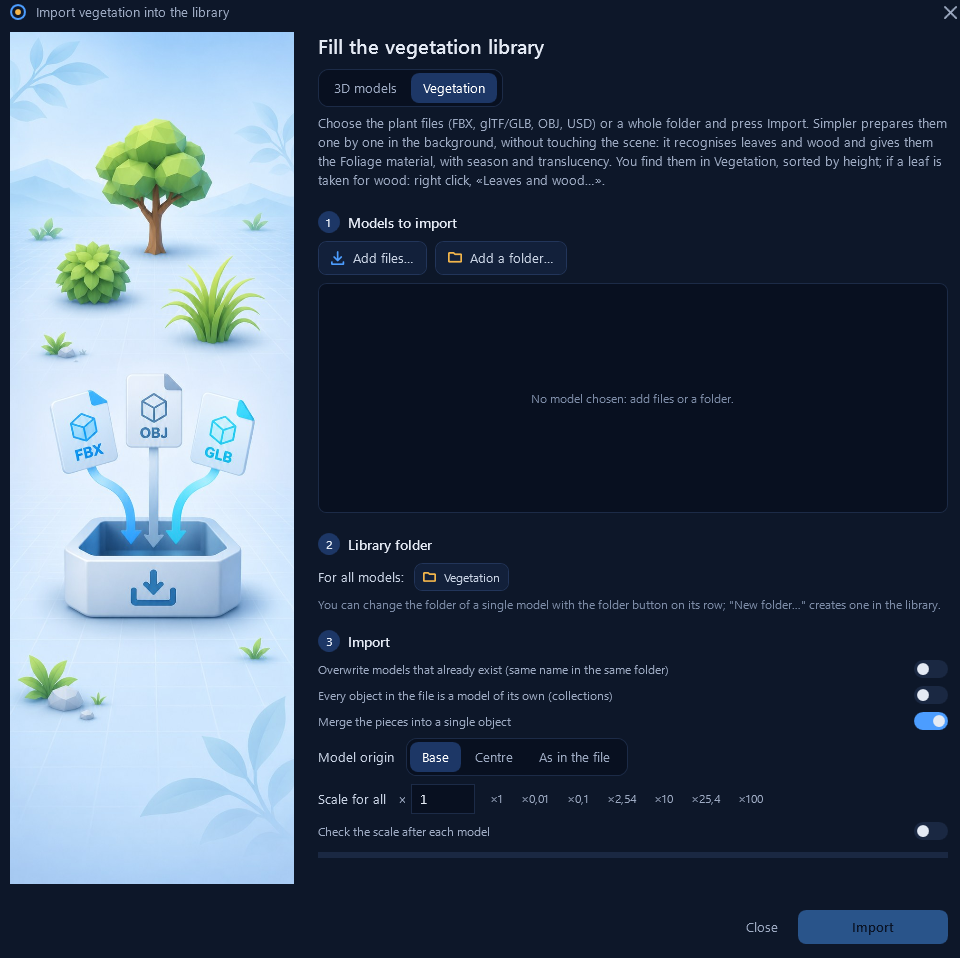
Plants deserve their own door, Import vegetation into the library…. The window is the same, but Simpler does something more: it recognises leaves and wood and gives them the Foliage material, with the season and the light that shines through the leaves. The plants end up in Vegetation, sorted by height, ready for the scatter and the ecosystems. If a leaf is taken for wood (it can happen with unusual models), right-click the plant ▸ Leaves and wood… and correct it.
Fixing the materials of many models#
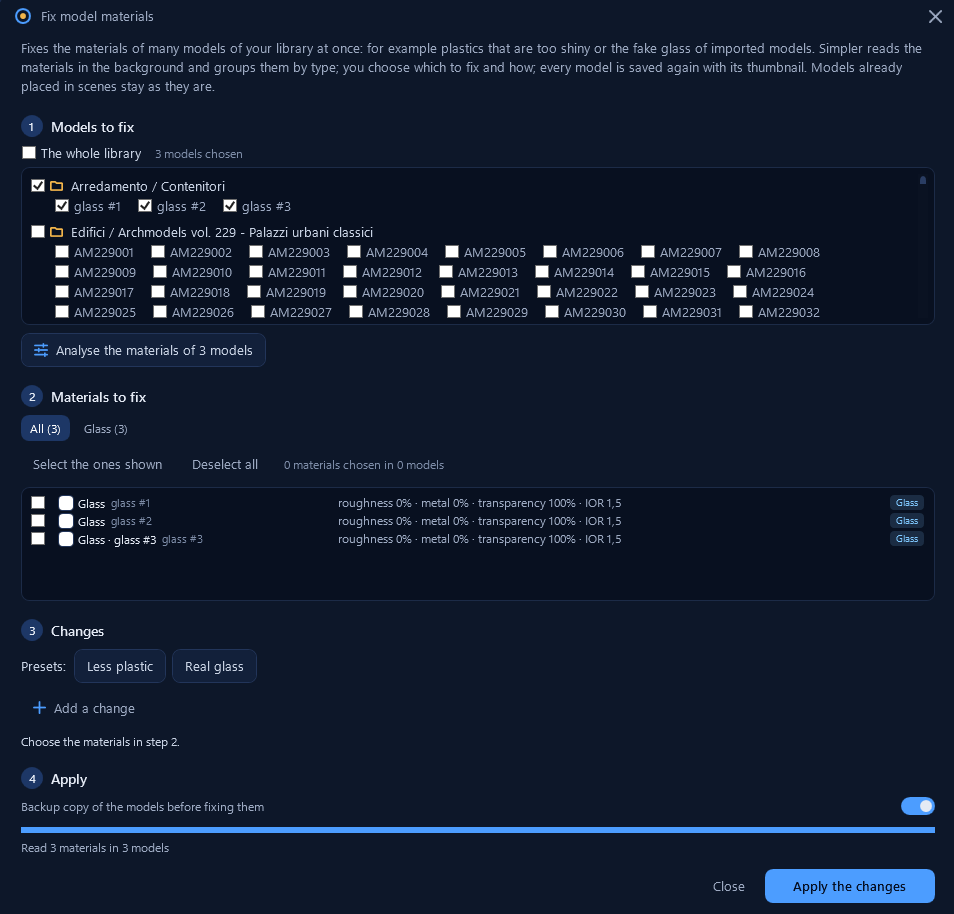
Models downloaded from different websites often share the same defects: plastics as shiny as mirrors, or glass that is not glass at all but a grey surface made transparent with a trick. Fixing them one by one would take hours, and Fix model materials… does it for many models at once.
- Choose the models to fix: tick folders or single models, or The whole library.
- Click Analyse the materials. Simpler reads the materials in the background, without opening them in your scene, and groups them by type, showing for each one its roughness, metal, transparency and index of refraction.
- Choose the materials to fix and the changes. Two presets cover the common cases: Less plastic makes glossy materials a little rougher, for softer, more natural reflections; Real glass turns fake glass into real glass, transparent and smooth. Add a change lets you set your own.
- Click Apply the changes. Every model is saved again with its thumbnail.
Leave Backup copy of the models before fixing them on: Simpler keeps each model as it was, and Restore the last fix brings it back (the last three fixes are kept). Models already placed in your scenes stay as they are.
Library statistics and cleanup#
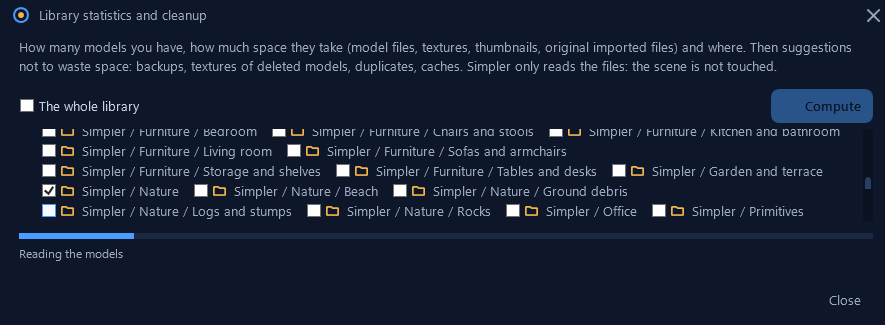
After months of work a library grows, and not always tidily. Library statistics and cleanup… tells you how many models you have and how much space they take, divided into model files, textures, thumbnails and the original imported files, and where they are. Choose the folders (or The whole library) and click Compute.
At the end it gives you suggestions for not wasting space: old backups, textures of models you deleted, duplicates, caches. Simpler only reads the files, and your scene is never touched.
Packages#
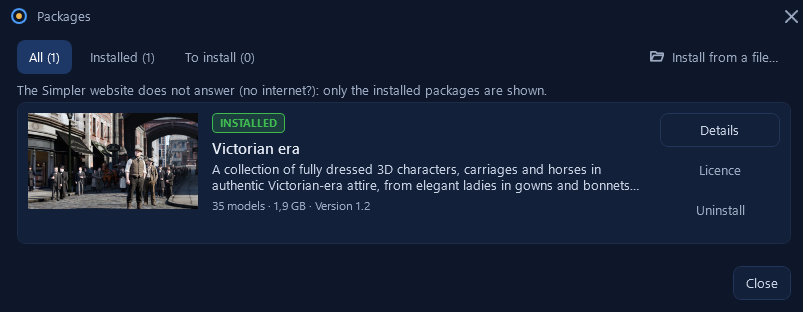
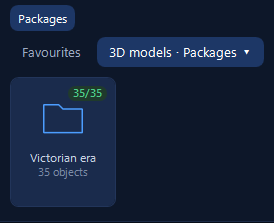
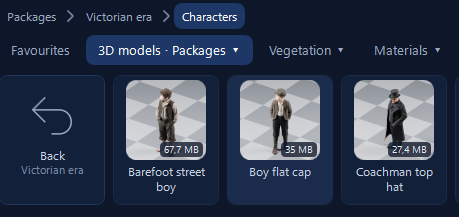
Packages are themed collections of models prepared for Simpler, for example Victorian era: fully dressed period characters, carriages and horses, 35 models in all. A package is a single .simplerpack file, checked and signed, that installs its models into the right folders of your library.
Packages… in the Import menu opens the Packages window. The tabs All, Installed and To install list what is available on the Simpler website, with cover, number of models, size and version; Details shows what is inside, Licence tells you how you may use it, Uninstall removes it. When a new package or an update comes out, a blue strip in Simpler lets you know. If you received a package as a file, Install from a file… installs it.
Without an internet connection the window shows only the packages you already installed, and tells you so.
Installed packages appear in the library under the blue folders, 3D models ▸ Packages, one folder per package.