 simpler
The library
At the bottom of the window lives the library: everything you can put into a scene, from a chair to a whole forest. Its organisation is the same in every tab, so once you understand one, you understand them all.
The tabs#
The library is divided into tabs by kind of content. 3D models ▾ holds objects of every kind: furniture, people, vehicles, street furniture, statues. Vegetation ▾ holds trees, bushes, grasses and flowers, ready for the scatter. Materials ▾ and Decals ▾ contain surfaces and pictures to put on your models: a decal is a picture stuck on a surface, like a stain on a wall, a road sign or a poster. Ecosystems ▾ holds ready-made mixes of plants, and HDRI and backgrounds photographed skies and studio backgrounds.
Two tabs are a little different. Favourites collects the items you marked, from every tab, in one place. Project ▾ belongs to the project you have open: it contains the Scenes you saved and the AI outputs made for this project. The library's search box looks through the whole library at once, and Why Simpler exists brings back the welcome box.
Where things come from#
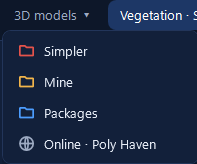
Inside a tab, the content comes from up to four sources, always in the same order and always with the same colour, so you recognise them at a glance. The red folders are Simpler: what comes with the program. They are read-only, so you cannot spoil them by mistake. The yellow folders are Mine: everything you imported or saved yourself, which you organise as you like, creating folders, dragging items between them, renaming and deleting. The blue folders are Packages, one for each package you installed. Finally, with the globe, Online · Poly Haven gives you free models, materials and HDRI skies from Poly Haven under the CC0 licence; decals also have Online · ambientCG.
Downloaded only when you need it#
To keep the installer small, Simpler's models, plants and ecosystems are not installed all together: each one is downloaded the first time you use it, and from then on it is on your computer.
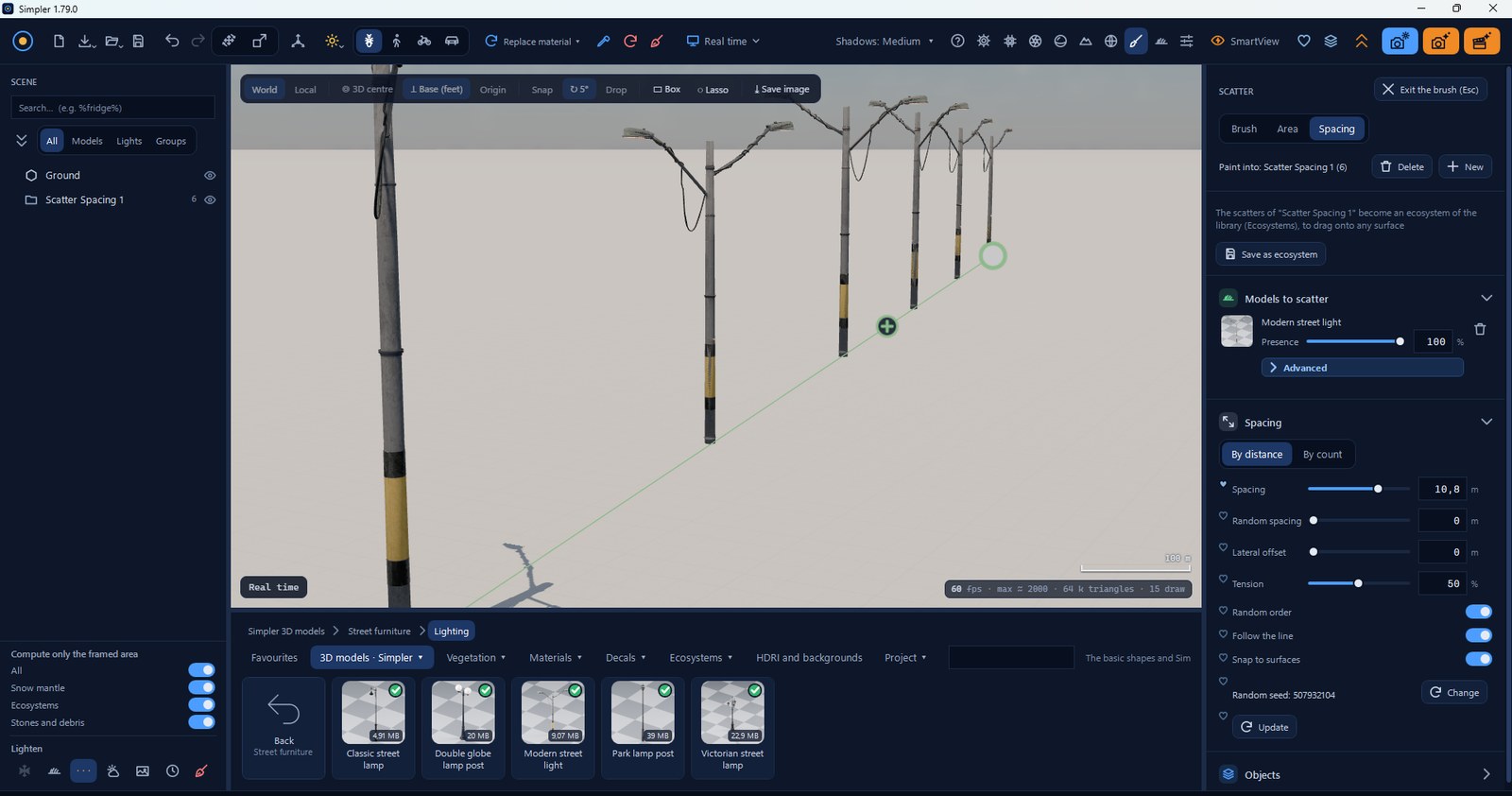
You see this at a glance on the tiles. A green tick means the item is already on your computer; without it, a click downloads it and a small bar on the tile shows the progress. On a folder, a counter such as 35/35 tells you how many items inside are already downloaded. If you delete a downloaded item to save space, the tick disappears and you can download it again whenever you want.
The best part is that you never have to think about it. If you open a project made on another computer, or one that uses models you deleted, Simpler downloads what is missing by itself: no error messages, no pink materials, no missing trees.
Without a connection Simpler simply works with what is already on your computer.
Putting items into the scene#
A click on a model puts it in the centre of the view. Dragging it into the view puts it exactly where you release it, resting on the surface under the mouse: this is the quickest way to put a chair at a table or a person on a pavement.
Materials and decals are dragged onto a piece of a model; a click on a material opens it for editing, and if it belongs to Simpler a copy becomes yours, so the original stays clean. A click on an HDRI makes that photographed sky the background and the light of your scene, and its sun becomes a real Sun light that casts shadows; the studio backgrounds are for scenes lit only by your own lamps, like a product on a table.
Which panel is open decides where a click goes. With the Scatter brush open, a click on a model adds it to the brush; with Stones and debris open and its choice on, it goes among the stones; otherwise it goes into the scene.
Favourites and search#
When you have thousands of items, two tools save you a lot of scrolling. Right-click any item ▸ Add to favourites and it appears in the Favourites tab, whatever its source: keep there the twenty things you use in every project. Remove from favourites takes it away. The search box finds models, plants, materials and ecosystems by name in the whole library at once.
Scenes: saving your views#
A good image often comes in several versions: the façade by day and by night, a wide shot and a detail, summer and winter. In Project ▾ ▸ Scenes you save the framing with all its settings: camera, time of day, weather, look. A click on a scene takes you back to it exactly; the ⟳ button updates it with what you see now. Prepare your shots this way and you can render them one after the other without redoing anything.
AI outputs#
Project ▾ ▸ AI outputs collects the images and the videos made with the artificial intelligence functions for this project, so you never lose them.